
How to remove an object from a short video
How to remove an object from a short video with AI. The free trial is one clip up to 5 seconds. Brush the object on one frame and download an MP4 with the scene and audio still in place.
One rider on a steady shot
A cyclist crosses a stone parapet in front of a reservoir. The rider and bicycle are marked on one frame. The arch, parapet, and water stay. The fill is softer in the far trees than on the stone.
The three studio steps for this clip
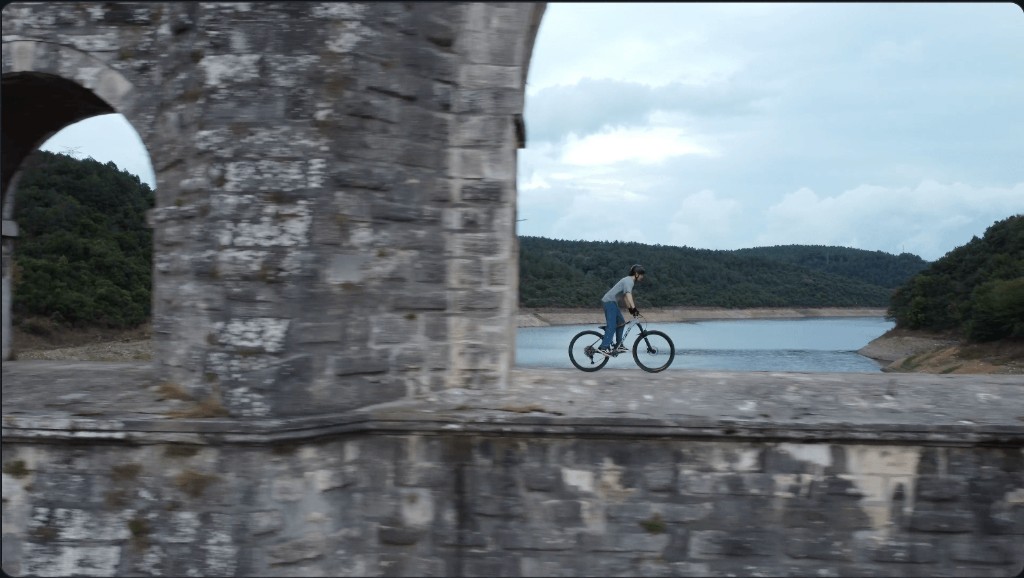
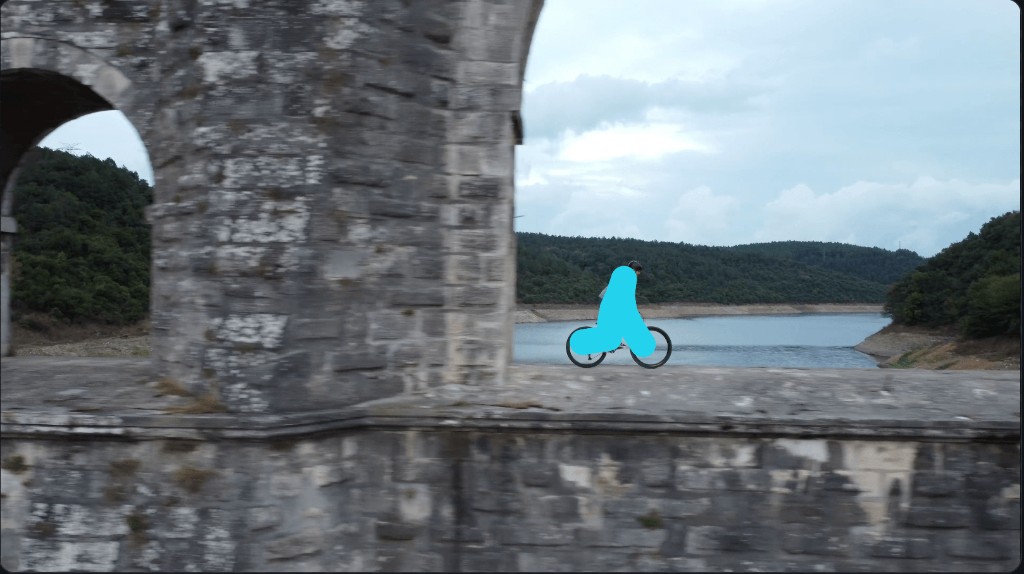
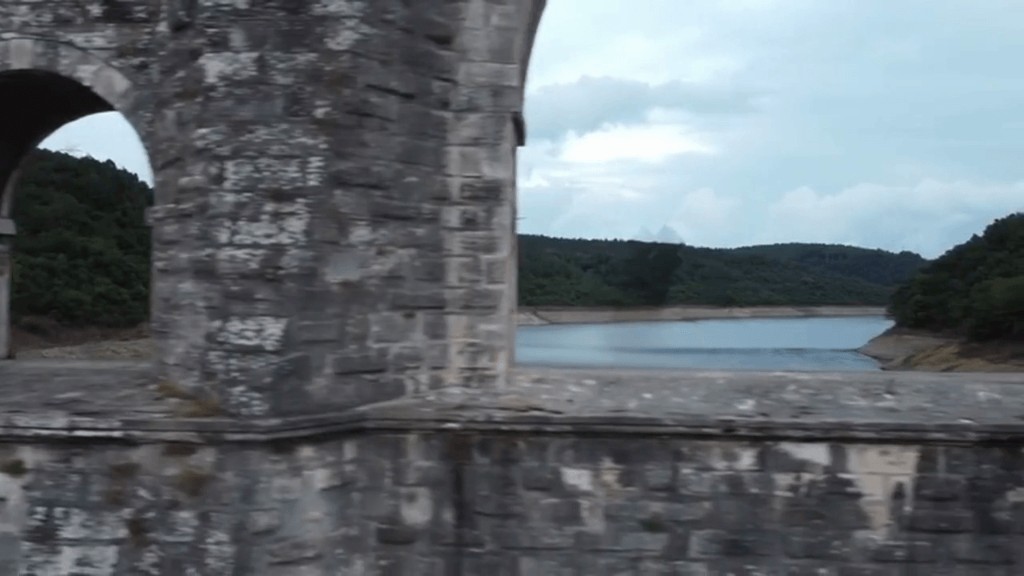
The clip above is the case: one cyclist, fully visible, crossing a stone parapet that stays still. A person walking through a shot you filmed is the same brush, with the street or room kept. That version is Remove a passerby from a video you filmed.
Open Remove Object from Video and upload one MP4, MOV, or WebM you filmed or have permission to edit. The file can be up to 100 MB and 60 seconds. You then choose the start and the length to process. There is no text prompt.
Brush the object on one frame where it is fully visible. The mark follows that object through the clip, so you do not paint every frame. Cover a shadow too if it should disappear. A bag, stand, cable, or boom in a product or interview shot is the usual case. One continuous shot with a stable background fills more cleanly than a fast pan, a crowd, or heavy motion blur.
The download is an MP4. Only the tracked area is filled, so the room, street, and other people stay. Audio from the selected range is mixed back in. Finished clips stay in My works for 30 days.
After sign-in, the free AI trial that removes one object from a video is one lifetime generation, up to 5 seconds and one object. That trial is shared with video background removal. Paid object removal costs 20 credits. Starter processes 10 seconds and up to 3 objects. Creator processes 20 seconds and Pro processes 30 seconds, each with up to 3 objects. Free uploads are capped at 1280×720 and processed at a long edge of 480. Starter and Creator export up to 1920×1080. Pro exports up to 3840×2160 when the source is within that size.
Use this workflow when one thing should go and the real scene should stay. People also call this an AI video eraser. It fills the brushed area. A blur tool is a different job, and a busy background can still look patched. An extra person or prop in a clip you generated is in remove one person or prop from an AI-generated video. When the whole background should turn green, use the background tool instead, at 10 credits. A still photo uses Remove Object from Image, or the photo guide. Credit totals are on pricing.